Follow this simple, step-by-step guide to easily set up IPTV on your Apple TV. Whether you’re a new user or just looking to get your IPTV service running, we’ll walk you through everything you need to know to enjoy high-quality streaming right from your TV.
Step 1: Prepare Your Apple TV
- Make sure your Apple TV is connected to the internet (Wi-Fi or Ethernet).
Step 2: Install an IPTV App
-
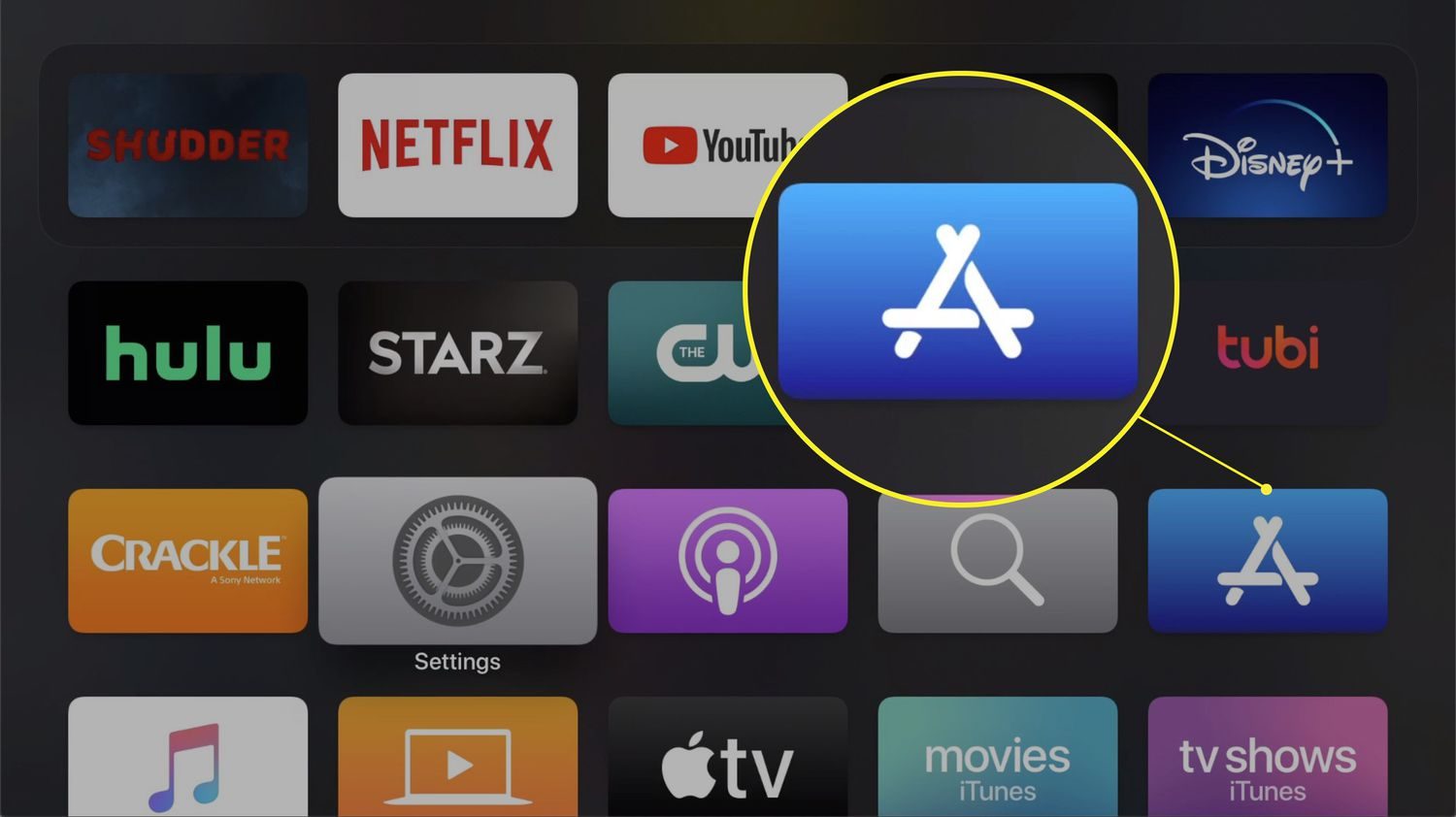
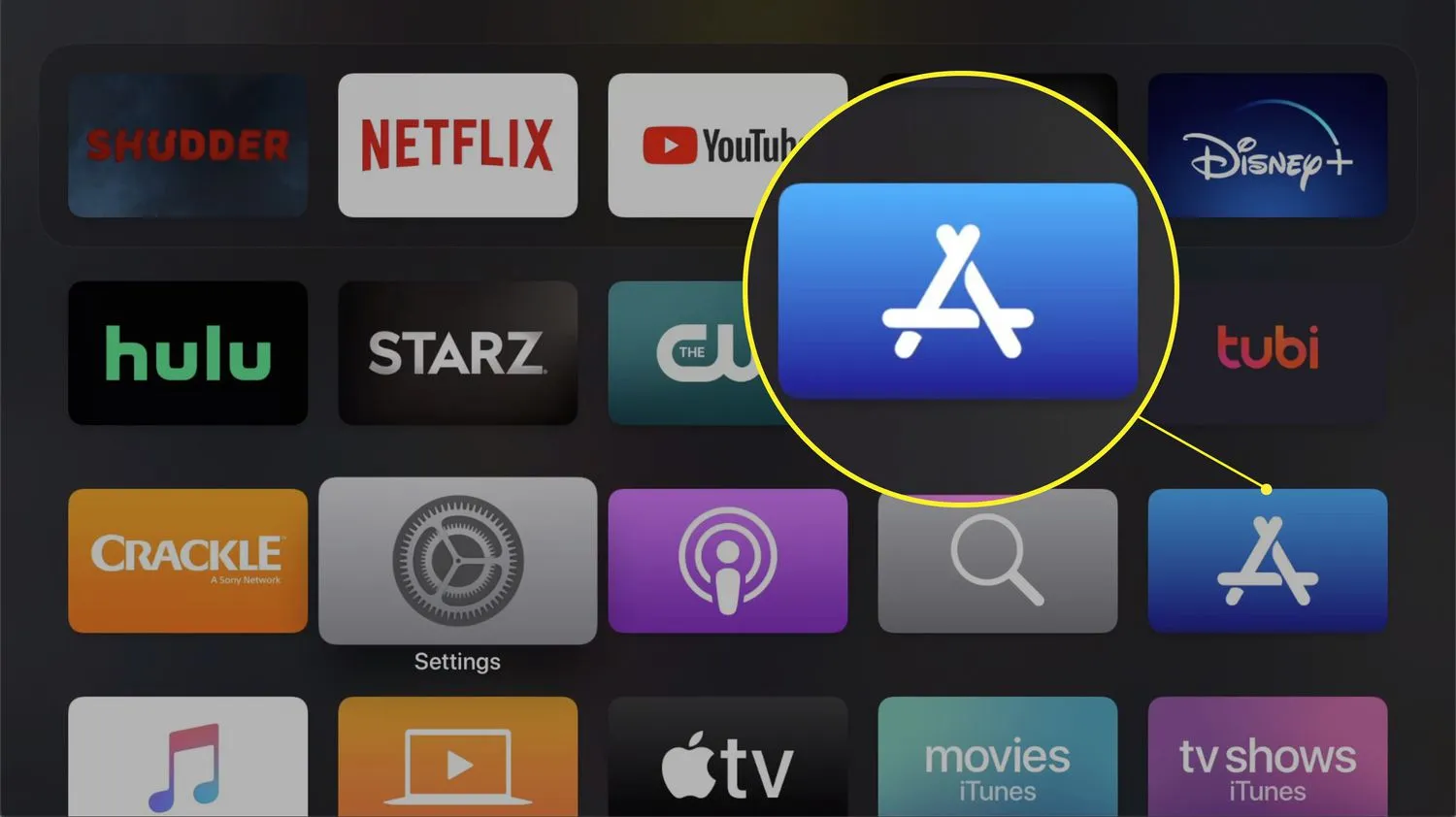
Open the App Store on your Apple TV.
-
Search for an IPTV app (e.g., GSE Smart IPTV, IPTV Smarters Pro, or Flex IPTV).
-
Choose the app you prefer and click Install.
Step 3: Launch the IPTV App
- After installation, find the app on your Apple TV’s home screen and open it.
Step 4: Set Up Your IPTV Subscription
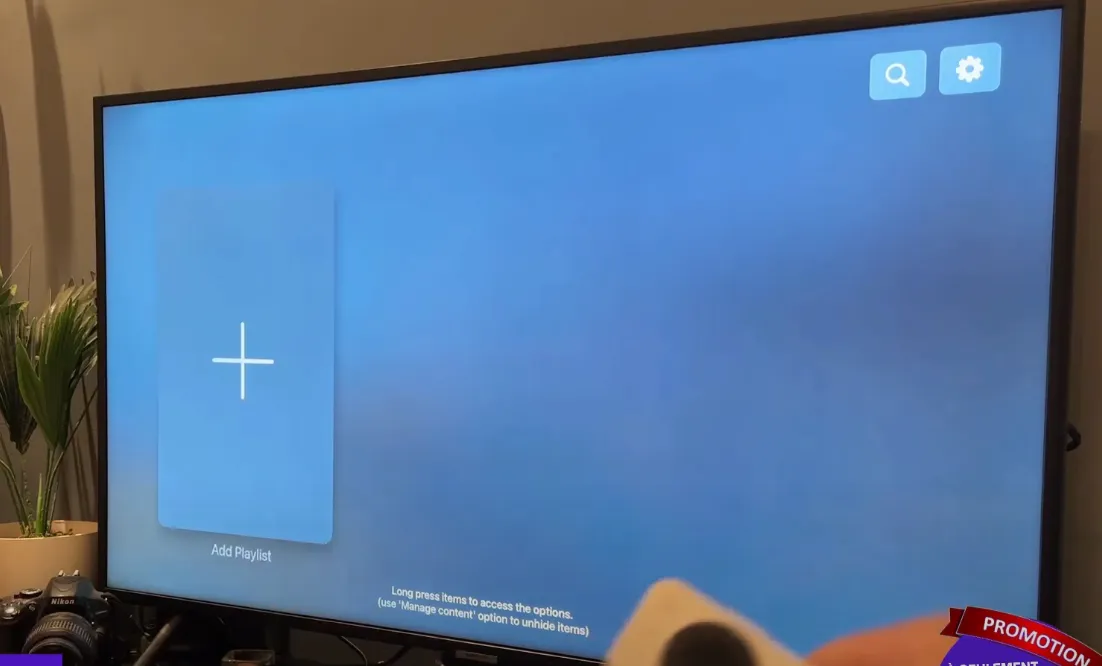
- In the app, go to Settings or Add Playlist.
-
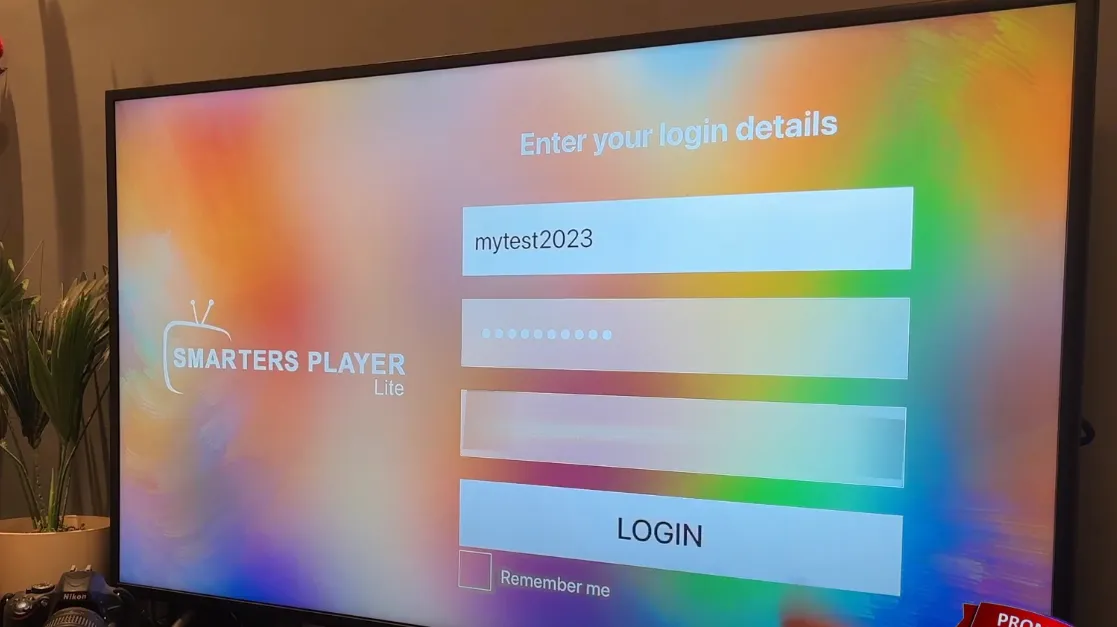
Enter your M3U URL or Login details (username and password) given by your IPTV provider.
-
If you have an M3U file, you can paste the URL or upload the file directly.
Step 5: Start Watching IPTV
- Now that it’s set up, you can browse through channels and start streaming your favorite shows and movies.

Step 6: Customize Your Viewing Experience
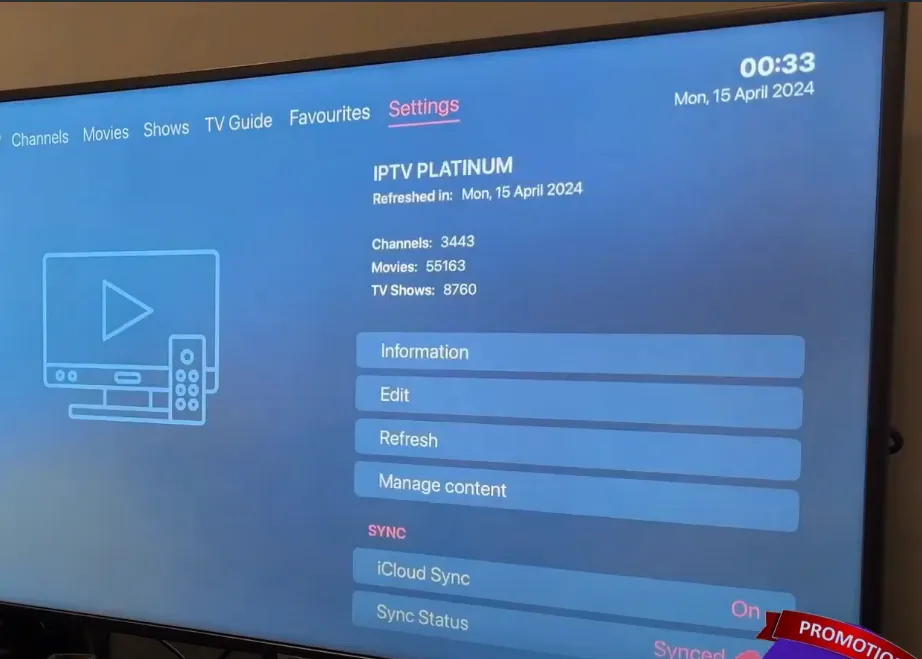
- Adjust settings like subtitles and video quality in the app for a better experience.
Quick Tips:
-
A stable internet connection ensures smooth streaming.
-
If you face issues, try restarting the app or checking your connection.
With these simple steps, you’re ready to enjoy IPTV on your Apple TV!